Free Shipping on orders over $75

Turn one USB-C or Thunderbolt port into a full workspace. Belkin docking stations, USB-C hubs, and Thunderbolt docks add monitors, Gigabit Ethernet, SD, and USB ports to your laptop, with pass-through charging over a single cable, whether you build a permanent desk setup or travel light.
From a pocket-sized travel hub to a Thunderbolt 5 dock, Belkin's range turns one USB-C or Thunderbolt port into a full workstation. Compare ports, video output, wired Ethernet, and charging to find the dock or hub that fits your desk.
| Product | Ports | Video Out | Ethernet | Power (PD) | Best For |
|---|---|---|---|---|---|
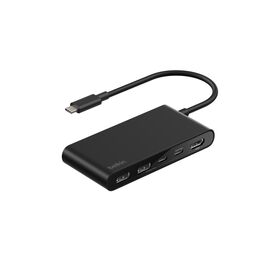
| USB-C 4-in-1 Multiport Adapter | 4: HDMI, 2x USB-A, USB-C | Single 4K at 30Hz | No | Up to 100W | Ultra-compact travel adapter for one display plus charging |
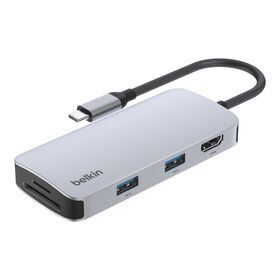
| USB-C 5-in-1 Multiport Hub | 5: HDMI, SD, microSD, 2x USB-A | Single 4K at 60Hz | No | None | Photo and video creators wanting dual card readers plus 4K60 |
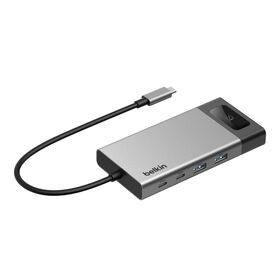
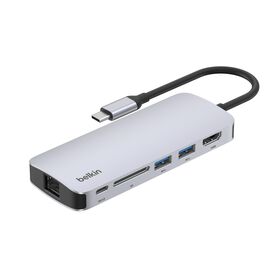
| USB-C 6-in-1 Multiport Hub | 6: HDMI, Gigabit Ethernet, SD, USB-C, 2x USB-A | Single 4K at 60Hz | Gigabit | Up to 100W | Home-office hub that adds wired Ethernet, 4K60, and charging |
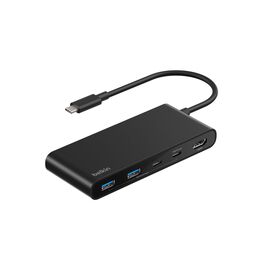
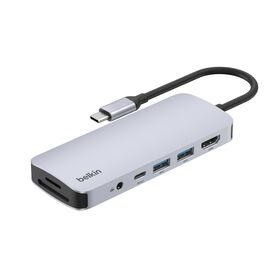
| USB-C 7-in-1 Multiport Hub | 7: HDMI, SD, microSD, USB-C, 2x USB-A, 3.5mm audio | Single 4K at 60Hz | No | Up to 100W | Creators needing SD, microSD, and 3.5mm audio with 4K60 |
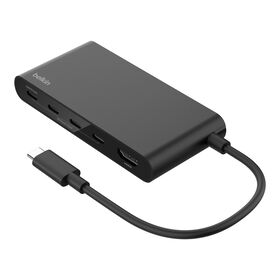
| Universal USB-C 8-in-1 Dual Display Core Hub | 8: 2x HDMI, 3x USB-C, 2x USB-A, Gigabit Ethernet | Dual 4K (universal driver, Mac and Windows) | Gigabit | Up to 100W | Dual-display setups across mixed Mac and Windows laptops |
| USB-C 11-in-1 Multiport Dock | 11: HDMI, DisplayPort, VGA, 3x USB-A, Gigabit Ethernet, SD, microSD, 3.5mm, USB-C | HDMI, DisplayPort, and VGA, up to 4K | Gigabit | Up to 100W | Maximum legacy connectivity (VGA, DP, HDMI) in one compact dock |
| 14-Port USB-C Docking Station 65W | 14: 2x HDMI, 2x DisplayPort, 2x USB-C, 5x USB-A, Gigabit Ethernet, 3.5mm | Up to triple display, 4K (MST on Windows) | Gigabit | Up to 65W | High-port-count triple-display Windows desks, 10Gbps USB |
| Universal 16-Port Triple Display USB-C Dock | 16: 3x USB-A, USB-C, 2x DisplayPort, 3x HDMI, 2.5Gb Ethernet, 2x 3.5mm audio | Triple 4K at 60Hz (universal driver, Mac and Windows) | 2.5 Gigabit | Up to 100W | Universal triple-4K desks on any Mac or Windows laptop, high port count |
| Thunderbolt 4 5-in-1 Core Hub | 5: 4x Thunderbolt 4, USB-A | Dual 4K at 60Hz or single 8K | No | Up to 96W | Highest-bandwidth work: 8K or dual-4K plus 40Gbps storage |
| Connect Thunderbolt 5 Dock | 14: Thunderbolt 5, USB-C, USB-A, HDMI, 2.5Gb Ethernet | Triple 4K at 144Hz or 8K at 60Hz | 2.5 Gigabit | Up to 140W | Top-tier Thunderbolt 5 desks: 80Gbps, triple display, daisy-chaining |
 Docking Stations: The Ultimate Buying Guide
 What Is a Laptop Docking Station?
 Connecting a Docking Station: Setup Tips
 Docking Stations for the Apple M4 MacBook Pro
 9 Best USB-C Dock Features to Optimize Your Flow
 USB-C Hubs, Docks & Adapters: How to Choose
 What Is Thunderbolt? The Ultimate Guide
 Thunderbolt 5: The Complete Next-Gen Guide
 New: Belkin Connect USB-C 11-in-1 Pro GaN Dock 150W
 DisplayPort vs HDMI: Which Do You Need?
 USB-C Power Delivery: Fast Charging Up to 240W
 Connect Smart and Stay Productive
 What Is USB-C? The Complete Guide
 USB-C Charging Explained: Safety and FAQs
A docking station connects your laptop to many devices through a single USB-C or Thunderbolt port. It adds external monitors, SD cards, USB-A devices, wired Ethernet, headphones, and more, turning a laptop into a full desktop, and the same connection can charge the laptop at the same time. Belkin's flagship Connect Thunderbolt 5 Dock shows the top of the range, with 14 ports and triple-display support.
It depends on your setup. If you run one or more external monitors and several accessories, a docking station replaces a tangle of separate cables with one connection that also powers the laptop. A multiport option like the USB-C 11-in-1 Multiport Dock adds displays, Ethernet, card readers, and USB in a single compact unit.
Generally yes. Most laptops with a USB-C port can use a docking station, though it is always worth checking your laptop's specs against the dock's, especially for display count and charging wattage. Browse options built for laptops on our laptop docking stations page.
Yes. Most Belkin docks pass power through to the laptop over the same cable that carries video and data, so check the product's Power Delivery rating to be sure it meets your laptop's needs. For example, the Universal USB-C 8-in-1 Dual Display Core Hub delivers up to 100W of pass-through charging.
A docking station is a desk device with its own wall power that charges the laptop and adds many ports and multiple displays. A hub is smaller and more portable, adds ports, and may or may not pass power through to the laptop. Compare the compact end of the range on our USB and USB-C hubs page.
A docking station lets you connect a full desk of peripherals through one cable, so you can dock and undock in seconds and take the laptop with you. It also charges the laptop over that same connection. High-port-count models like the 14-Port USB-C Docking Station support triple displays and up to 14 connections.
A Thunderbolt hub is the fastest way to connect a desk of accessories over one reversible cable, adding ports for storage, displays, and Ethernet that a laptop may lack. Thunderbolt 4 delivers up to 40Gbps and Thunderbolt 5 up to 80Gbps, so displays and external drives run at full speed. See the range on our Thunderbolt docks page.
Yes. USB-C hubs work on most laptops with a USB-C port across Mac, Windows, and Chromebook; it is still worth checking the hub's compatibility notes for display and charging support. A home-office option like the USB-C 6-in-1 Multiport Hub adds Ethernet, 4K HDMI, and charging.
Most people use one USB-C hub per laptop, though you can connect more if the laptop has several USB-C ports. For travel, a pocket-sized option like the USB-C 4-in-1 Multiport Adapter is easy to add to any port.
Generally, no. A quality hub passes data through at the full speed your laptop and devices support, so a 10Gbps drive still runs at 10Gbps. A well-specified hub such as the USB-C 7-in-1 Multiport Hub keeps 4K video, data, and charging running together without a bottleneck.