Premium accessories for iPhone 18. Shop now


Laptop Docking Stations
Turn your laptop into a full desktop with one cable. Belkin laptop docking stations add dual or triple monitors, Gigabit Ethernet, card readers, and USB ports, and charge the laptop while you work, on Mac and Windows alike.


- Featured
- Newest
- Best Seller
- Top Rated
- Price: Low to High
- Price: High to Low
https://www.belkin.com/products/docks-hubs/laptop-docking-stations/?start=0&sz=12
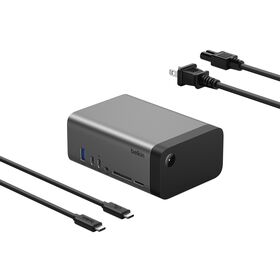


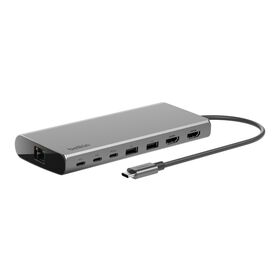
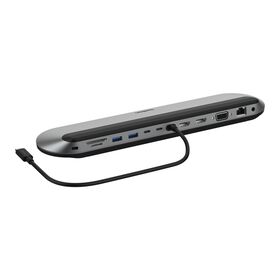

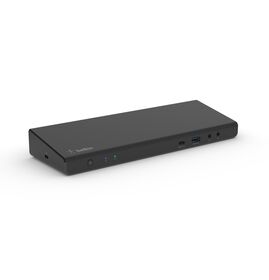

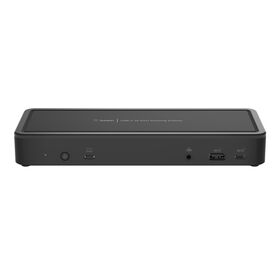


Compare Belkin Laptop Docking Stations
A docking station turns a laptop into a desktop with one cable: multiple monitors, wired Ethernet, card readers, and USB, plus power to charge the laptop. Compare Belkin's USB-C docks by ports, display support, and charging. For the fastest Thunderbolt options, see the Thunderbolt docks page.
| Docking Station | Ports | Video Out | Ethernet | Power & Best For |
|---|---|---|---|---|
| 14-Port USB-C Docking Station 65W | 14: 2x HDMI, 2x DisplayPort, 2x USB-C, 5x USB-A, Gigabit Ethernet, 3.5mm | Up to triple display, 4K (MST on Windows) | Gigabit | Up to 65W PD. High-port-count triple-display Windows desks with 10Gbps USB |
| USB-C 11-in-1 Multiport Dock | 11: HDMI, DisplayPort, VGA, 3x USB-A, Gigabit Ethernet, SD, microSD, 3.5mm, USB-C | HDMI, DisplayPort, and VGA, up to 4K | Gigabit | Up to 100W PD. Maximum legacy connectivity (VGA, DP, HDMI) in one compact dock |
| Universal USB-C 8-in-1 Dual Display Core Hub | 8: 2x HDMI, 3x USB-C, 2x USB-A, Gigabit Ethernet | Dual 4K (universal driver, Mac and Windows) | Gigabit | Up to 100W PD. Dual-display setups across mixed Mac and Windows laptops |
Learn More About Docking Stations
-
 Docking Stations: The Ultimate Buying Guide
-
 9 Best USB-C Dock Features to Optimize Your Flow
-
 USB-C Hubs, Docks & Adapters: How to Choose
-
 What Is Thunderbolt? The Ultimate Guide
-
 Thunderbolt 5: The Complete Next-Gen Guide
-
 New: Belkin Connect USB-C 11-in-1 Pro GaN Dock 150W
-
 DisplayPort vs HDMI: Which Do You Need?
-
 USB-C Power Delivery: Fast Charging Up to 240W
-
 Connect Smart and Stay Productive
-
 What Is USB-C? The Complete Guide
-
 USB-C Charging Explained: Safety and FAQs
Laptop Docking Stations: Your Questions Answered
A laptop docking station connects your laptop to a full desk of devices, monitors, keyboards, wired Ethernet, drives, and more, over a single cable, and charges the laptop at the same time. High-port-count models like the 14-Port USB-C Docking Station support up to triple displays.
A good Thunderbolt docking station gives you high-speed data, multi-monitor support, wired Ethernet, and plenty of ports over one cable. Belkin's Thunderbolt 5 and Thunderbolt 4 docks run at up to 80Gbps and drive up to three displays. Compare them on our Thunderbolt docks page.
Plug each monitor into one of the dock's video outputs (HDMI or DisplayPort), then set them as extended displays in your operating system's display settings. On laptops that do not natively support dual external monitors, a driver-based dock like the Universal USB-C 8-in-1 Dual Display Core Hub adds the second display for you.
Connect the dock to power, plug your monitors and peripherals into the dock, then connect the dock to your laptop with the included USB-C or Thunderbolt cable. A multiport dock such as the USB-C 11-in-1 Multiport Dock handles displays, Ethernet, card readers, and USB from that one connection.
Not always. Check that the dock matches your laptop's port (USB-C or Thunderbolt), the number of displays your laptop can drive, and the charging wattage it needs. Our docking stations buying guide walks through how to choose.