
"My new laptop only has USB-C ports"
You upgraded to a MacBook or a slim Windows laptop, and now your flash drives, mouse, and old cables all have the wrong end. Nothing plugs in.
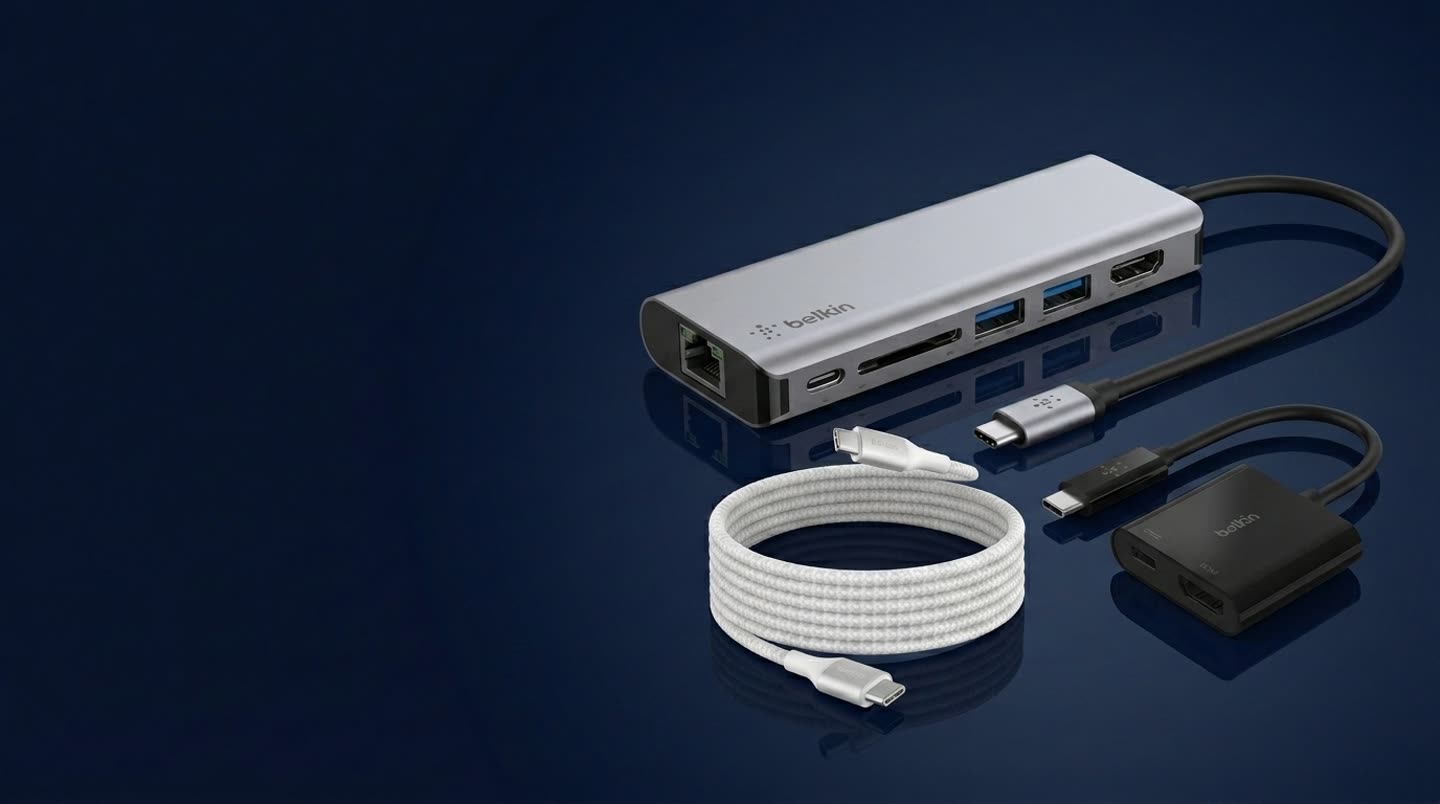
Start at USB-C, pick the port you need to reach, and there is a Belkin cable or adapter rated for it. Cables run end to end; adapters convert a USB-C port to another connector.
| From | Connect To | Type | Belkin Product | Max Spec |
|---|---|---|---|---|
| USB-C | USB-C | Cable | BoostCharge Braided USB-C to USB-C Cable 240W | 240W power |
| USB-A | USB-C | Cable | BoostCharge Braided USB-A to USB-C Cable | 15W charge |
| USB-C | Lightning | Cable | BoostCharge USB-C to Lightning Cable | MFi, fast charge |
| From | Connect To | Type | Belkin Product | Max Spec |
|---|---|---|---|---|
| USB-C | USB-A | Adapter | 3.0 USB-C to USB-A Adapter | USB 3.0, 5Gbps |
| USB-C | Thunderbolt / USB4 | Cable | Connect Thunderbolt 4 Cable | 40Gbps, 8K, 100W |
| USB-C | Ethernet | Adapter | Connect USB-C to 2.5Gb Ethernet Adapter | 2.5Gbps RJ45 |
| USB-C | SD / microSD | Adapter | Connect USB-C 6-in-1 Multiport Hub | SD + microSD |
| From | Connect To | Type | Belkin Product | Max Spec |
|---|---|---|---|---|
| USB-C | HDMI | Adapter | Connect USB-C to HDMI + Charge Adapter | 4K at 60Hz |
| USB-C | DisplayPort | Cable | Connect USB-C to DisplayPort 1.4 Cable | 4K 144Hz / 8K |
| USB-C | VGA | Adapter | USB-C to VGA + Charge Adapter | 1080p at 60Hz |
| USB-C | 3.5mm Audio | Adapter | RockStar 3.5mm Audio + Charge Adapter | Audio + charge |
| From | Connect To | Type | Belkin Product | Max Spec |
|---|---|---|---|---|
| USB-C | HDMI + USB + SD | Adapter | Connect USB-C 6-in-1 Multiport Hub | 6 ports in one |
| USB-A | Triple Display + USB + Ethernet | Dock | Connect Universal 16-Port Triple Display USB-C Dock | 100W PD, 16 ports |
Cables connect two ports end to end. Adapters and multiport hubs convert a single USB-C port into one or more different connectors. The dock lists a USB-A starting point because it ships with a USB-C to USB-A adapter, so an older laptop without a USB-C port can still drive the full dock. Specs reflect the rated maximum for each Belkin product; actual performance may vary based on your device specifications.
Most people need a USB-C cable or adapter for one specific reason. Find the situation closest to yours, along with the Belkin product that handles it.
You upgraded to a MacBook or a slim Windows laptop, and now your flash drives, mouse, and old cables all have the wrong end. Nothing plugs in.
A meeting room, a classroom, or the living room TV. The display has HDMI or an older VGA port, and your laptop only speaks USB-C.
Sit down, plug in once, and instantly get your monitor, keyboard, mouse, and wired internet. Stand up and unplug a single connector to leave.
Video meetings stutter and game lag spikes at the worst moment. A wired connection is steadier and lower-latency than Wi-Fi, but your laptop has no Ethernet jack.
Your charger and laptop moved to USB-C, but your iPhone 14, older AirPods, or accessories still use Lightning. You need one cable that bridges both.
Offload photos from a camera's SD card, or use wired headphones on a phone that dropped the 3.5mm jack, often while charging at the same time.
Each one is a real Belkin cable or adapter. Find the port you need to reach, then pick the matching connector.
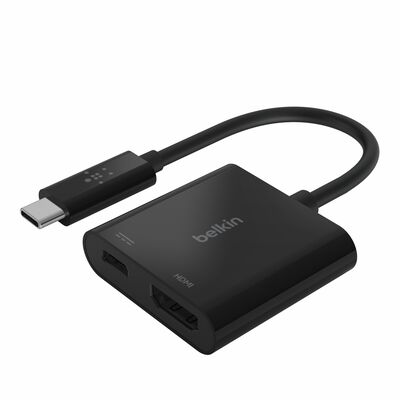
Mirror or extend your laptop to a TV, monitor, or projector at 4K, with pass-through charging so your laptop stays powered.
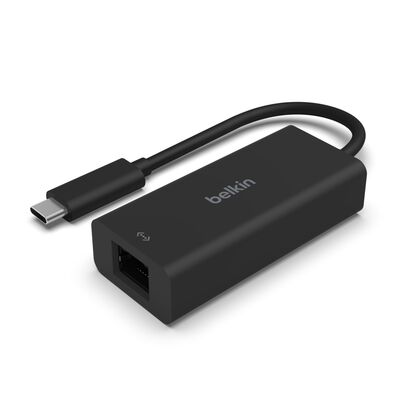
Add a fast, stable wired network connection to any USB-C laptop. Ideal for video calls, big downloads, and gaming.
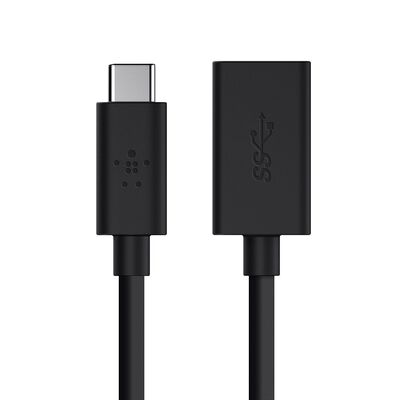
Plug flash drives, mice, keyboards, and other USB-A accessories into a modern USB-C laptop at full USB 3.0 speed.
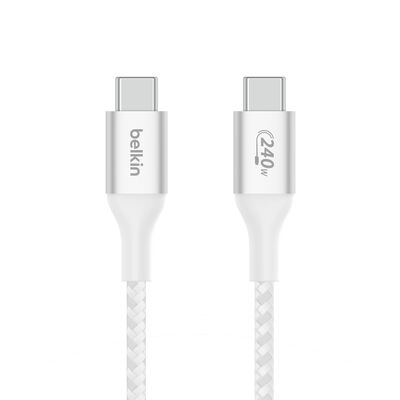
The everyday workhorse. Charges anything from phones to the most demanding laptops, with a tough braided jacket.
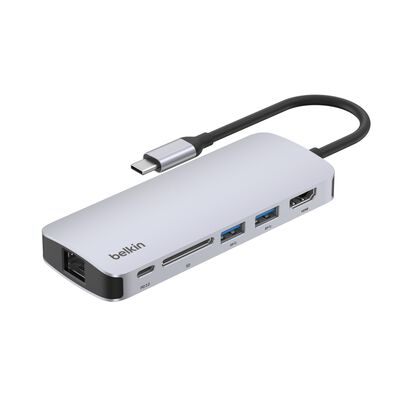
HDMI, USB-A, USB-C, and an SD reader in one compact hub. The fastest way to turn one port into a full workspace.
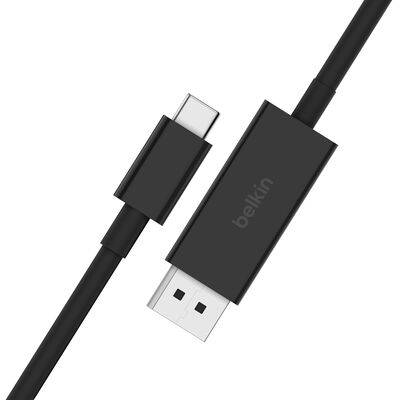
Drive a high-resolution monitor straight from your laptop, with support for 4K at 144Hz or a single 8K HDR display.
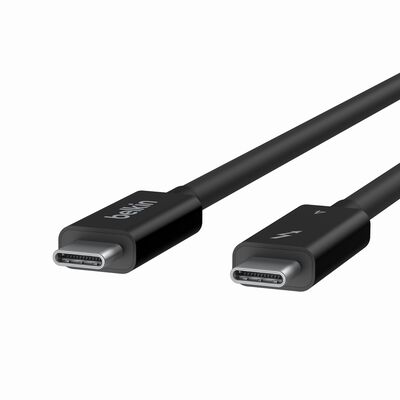
The fastest connection Belkin makes. 40Gbps of data, up to 8K video, and 100W charging for docks, SSDs, and pro displays.
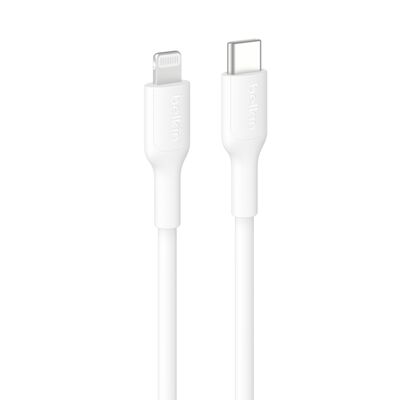
MFi-certified fast charging for iPhone 14 and earlier, AirPods, and other Lightning devices from any USB-C charger.
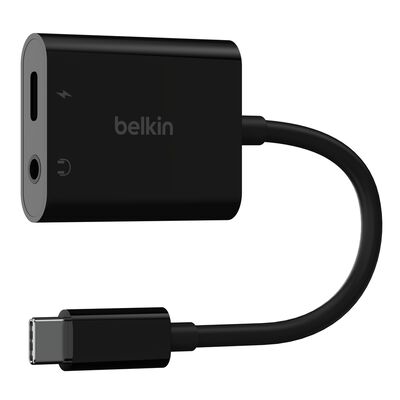
Bring back the headphone jack on a USB-C phone or laptop, and charge at the same time thanks to pass-through power.
A cable carries a signal that both devices already understand. An adapter changes that signal into a different one. Which you need depends on the ports involved, and it also affects how power and data move through the connection.
A cable is the simplest connection. It runs from one port to another of a known type, USB-C to USB-C, USB-C to Lightning, or USB-C to DisplayPort, and the same wires carry power and data at the same time. Nothing inside translates the signal, so the two devices just negotiate speed and wattage across the wire.
Because there is no conversion, the cable's rating is what matters most. An underrated cable becomes the bottleneck: it will charge slowly or refuse to drive a display even when both devices support more. The numbers below are printed on the cable or its packaging.
| What it carries | Range on a USB-C cable |
|---|---|
| Power | 60W up to 240W (USB-C PD and EPR) |
| Data | 480Mbps (USB 2.0) up to 40Gbps (USB4 / Thunderbolt) |
| Video | Up to 8K over DisplayPort or Thunderbolt |
| Conversion | None. Both ends must already match |
An adapter sits between two different standards and changes one into the other, so a USB-C port can reach HDMI, Ethernet, USB-A, VGA, or a 3.5mm jack. How much work it does depends on the type.
A passive adapter simply re-routes pins for a signal the USB-C port can already output on its own. An active adapter holds a small controller chip that converts the protocol, which draws a little power, so many active adapters add a pass-through USB-C port to keep your device charging while they work.
| Type | How it works | Example |
|---|---|---|
| Passive | Re-routes pins for a signal USB-C already outputs | USB-C to USB-A |
| Alt Mode | Uses DisplayPort Alt Mode built into the USB-C port | USB-C to DisplayPort |
| Active | A controller chip converts one protocol to another | USB-C to HDMI, Ethernet, VGA |
A cable connects two ports end to end, like USB-C to USB-C or USB-C to Lightning. An adapter converts a single USB-C port into a different connector, like USB-C to HDMI or USB-C to Ethernet. If your destination device already has a USB-C, Lightning, or DisplayPort socket, a cable is the cleanest option. If it has HDMI, VGA, USB-A, Ethernet, or a 3.5mm jack, you need an adapter.
Yes, with a multiport adapter. A USB-C port that supports DisplayPort Alt Mode can carry video, data, and power at once, so a 6-in-1 adapter splits it into HDMI, USB-A, an SD reader, and pass-through charging from one connection. For a permanent desk setup with more ports, a USB-C or Thunderbolt dock does the same job at a larger scale.
Yes. A Belkin USB-C to HDMI adapter outputs up to 4K at 60Hz, as long as your laptop's USB-C port supports video out, which nearly all modern laptops and MacBooks do. For higher resolutions, a USB-C to DisplayPort cable can reach 8K, and a USB4 or Thunderbolt connection carries the most display bandwidth of all.
No, not in a way you would notice. A quality USB-C to USB-A adapter passes through the full speed of the connected USB-A device, up to USB 3.0 (5Gbps). The ceiling is the USB-A standard itself, not the adapter. For charging, a USB-A connection delivers up to about 18W, which is plenty for phones and accessories.
They share the same USB-C connector but differ in capability. A standard USB-C cable focuses on charging (up to 240W) and basic data. A USB4 or Thunderbolt cable adds up to 40Gbps of data, support for 8K or multiple displays, and full power, which is what docks, external SSDs, and pro monitors need. If you are only charging, a standard USB-C cable is fine; for high-speed data or displays, choose USB4 or Thunderbolt.
Yes. A USB-C SD card reader adds SD and microSD slots for cameras and drones, and a USB-C to 3.5mm audio adapter brings back the headphone jack for wired headphones, often with pass-through charging so you can listen and charge at once. Both plug straight into a USB-C port with no software needed.
Match the adapter to the monitor's input. For an older projector or display with a VGA port, use a USB-C to VGA adapter (up to 1080p). For a monitor with DisplayPort, a USB-C to DisplayPort cable carries up to 8K and high refresh rates. For HDMI displays, use a USB-C to HDMI adapter. A multiport adapter with HDMI covers most modern monitors and TVs in one piece.
Yes. Belkin's Connect universal docks include a USB-C to USB-A adapter in the box, so a laptop without a USB-C port can still connect to the dock and use its displays, Ethernet, and USB ports. These docks drive their external screens with DisplayLink, so video works over a USB-A host as well as USB-C, though a native USB-C connection gives you the most data bandwidth and pass-through charging. Plug the dock's USB-C cable straight into a modern laptop, or add the included USB-A adapter for an older one.
 What Is USB-C? The Complete Guide
 What Is Thunderbolt? The Ultimate Guide
 USB-C Hubs, Docks & Adapters: How to Choose
 USB-C Power Delivery: Fast Charging Up to 240W
 Thunderbolt 5: The Complete Next-Gen Guide
 DisplayPort vs HDMI: Which Do You Need?
 Docking Stations: The Ultimate Buying Guide
 9 Best USB-C Dock Features to Optimize Your Flow
 USB-C Charging Explained: Safety and FAQs
 New: Belkin Connect USB-C 11-in-1 Pro GaN Dock 150W
 Connect Smart and Stay Productive