
The Site Survey feature of the Belkin WiFi 6 Range Extender, RX7500 displays all the WiFi within the range. This is helpful when you want the range extender to connect to your existing WiFi but the status shows Disconnected in the Basic Settings. Follow the instructions below to learn how to use the Site Survey feature of the Belkin range extender.
NOTE: This feature is ONLY available if the Belkin RX7500 is set up in Wireless Range Extender mode.
NOTE: This feature is ONLY available if the Belkin RX7500 is set up in Wireless Range Extender mode.
Step 1:
Open a web browser to log in to the web-based setup page of your range extender. For instructions, click here.
Step 2:
Under Wireless, click Site Survey.
Open a web browser to log in to the web-based setup page of your range extender. For instructions, click here.
Step 2:
Under Wireless, click Site Survey.

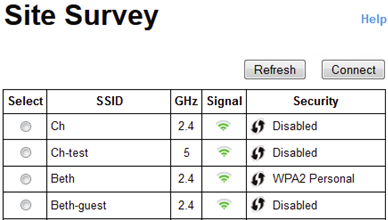
The Site Survey page will then be displayed.
-
Select - clicking the radio button beside the WiFi name selects the SSID.
-
SSID - displays the name of available WiFi.
-
GHz - indicates the radio band of available WiFi.
-
Signal - displays the relative position of the available networks within range by indicating the power of the wireless signal received.
QUICK TIP: If a signal with no green bar is displayed, the range extender is located too far from the router. For optimum performance, place your range extender near the router to keep the signal strength between 60% and 100%.
- Security - displays the security type used by available networks. If a network supports Wi-Fi Protected Setup™ (WPS), the WPS
 icon is also displayed.
 - Refresh - clicking the button refreshes the list of available WiFi.
- Connect - clicking this button lets you connect to the selected SSID.
Step 3:
Under Site Survey, click the radio button that corresponds to your WiFi name (SSID) then click Connect.

Step 4:
Enter your WiFi password in the Passphrase field then click Connect. Then, wait for the process to be completed.

NOTE: The type of security information required in this screen should match your access point or router’s wireless security settings. The WiFi password is also case-sensitive.
You should now have successfully configured your Belkin RX7500 with your WiFi. You can proceed with connecting wireless computers and devices to get internet access.
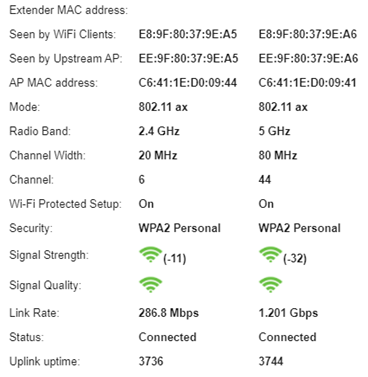
QUICK TIP: To know if your Belkin RX7500 is connected to the network, click Status > WLAN Statistics.
Notice that the current Status shows Connected.
QUICK TIP: If you encounter any issues, a firmware upgrade may resolve them. You can download the latest firmware of your Belkin range extender to ensure that you are using an updated version. Search your model number from the Belkin Support Site and download the file.


