
The Belkin MediaPlay is an application compatible with Android™ and iOS® devices that allows beaming and streaming of media files to any device connected to your network.
This article will provide you with instructions on how to beam online videos accessed from the MediaPlay app to networked smart device or media streamer.
This article will provide you with instructions on how to beam online videos accessed from the MediaPlay app to networked smart device or media streamer.
Step 1:
Tap the MediaPlay icon.
Tap the MediaPlay icon.

Step 2:
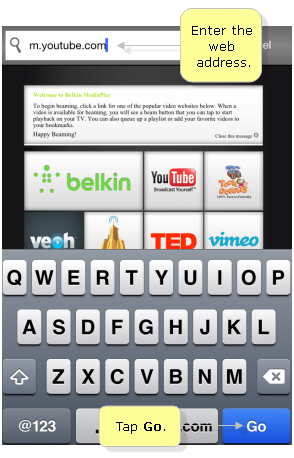
Enter the website link the in the address bar and then tap Go. In this example, m.youtube.com is used.
NOTE: To check if website supports beaming, click here.
Step 3:
Search or browse through the site and tap on the video you want to beam.
NOTE: If beaming is supported, the
 logo will appear.
Step 4:
Tap Beam to start beaming the video.

Step 5:
Once you are prompted to select a media device, tap Ok.

Step 6:
In the Display Device section of the menu, tap on the device you wish to beam the video to.
NOTE: The Display Device section will only show networked DLNA and Airplay compatible devices.
In the Display Device section of the menu, tap on the device you wish to beam the video to.
NOTE: The Display Device section will only show networked DLNA and Airplay compatible devices.

Once the device is selected, the video or media file will automatically beam to your selected streaming or smart device.


